Astro 98 · Bok Workshop
Making an Explainer Video
A guide to planning, filming and editing a short science explainer, from script to finished video.
Erandi Chavez
Nov 5, 2025
01 · Fundamentals
Explainer Video Basics
Audio–visual elements
In an explainer video, you have maximal control over the audience experience. You control what they see and hear. You also control the full flow of information, determining what they learn, and the exact order in which they learn it.
Story elements
Effective explainer videos use visuals and sounds to create narrative. This narrative will gradually build ideas from simple to complex, providing all the knowledge your audience needs to follow along. Visuals and the audio can become more complex as the narrative builds them up.
02 · What to watch for
Explainer Video Example
For teaching purposes, this example:
- has lots of props
- is very long
- is broad in topic
For your own video, aim for:
- A shorter script (250–300 words)
- A tighter focus, with fewer props
- A topic specific to your project
03 · What the viewer sees
Visuals
Choosing, simplifying and building the images that carry your explanation.
3.1
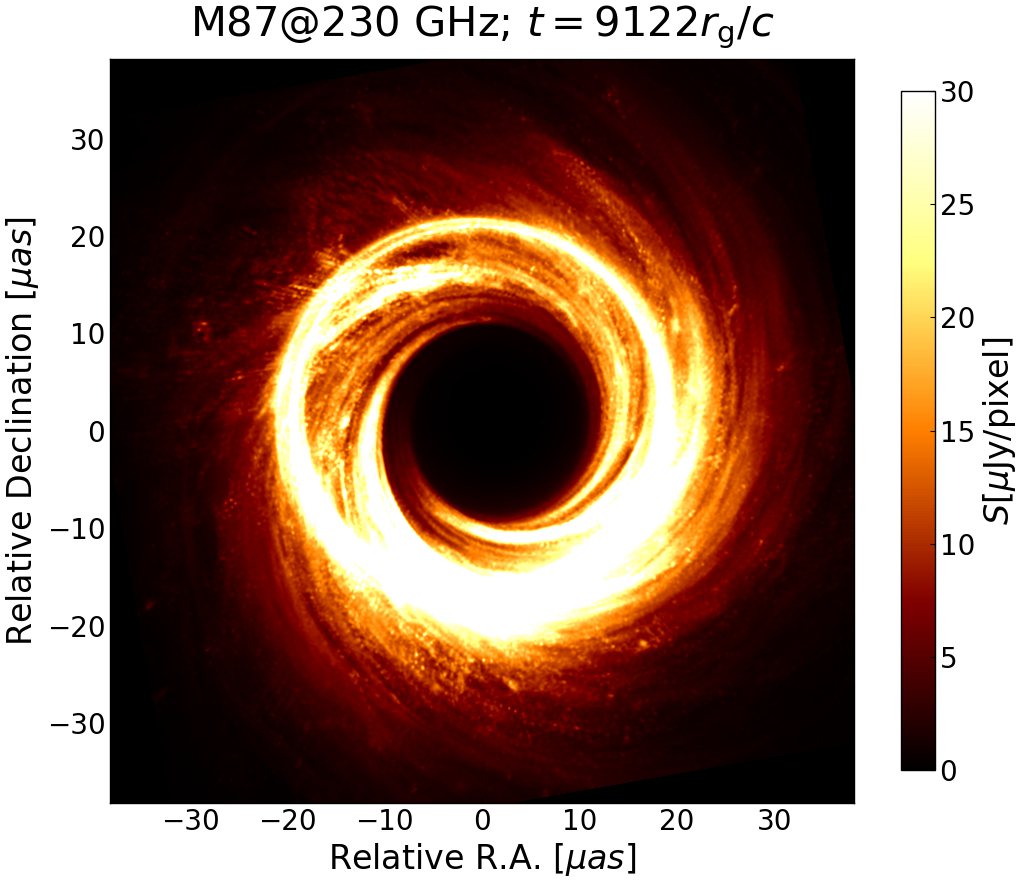
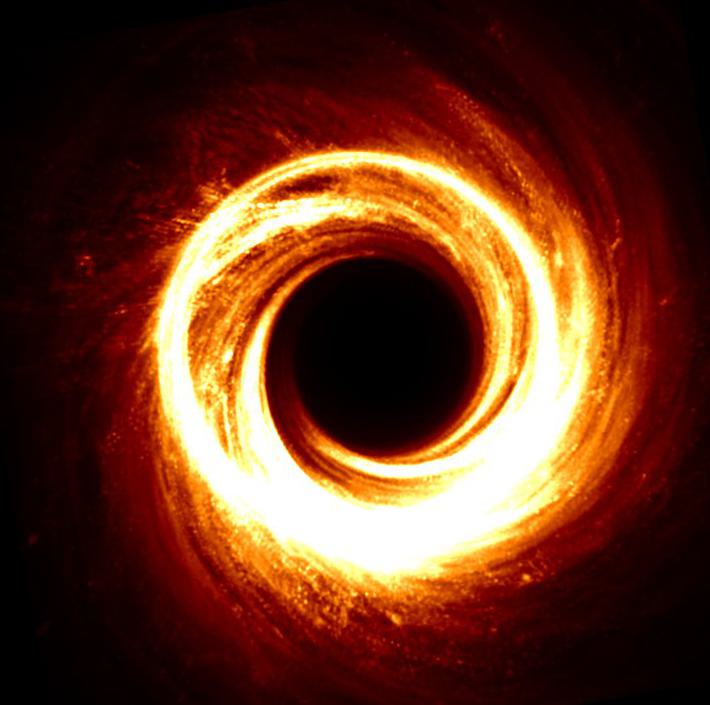
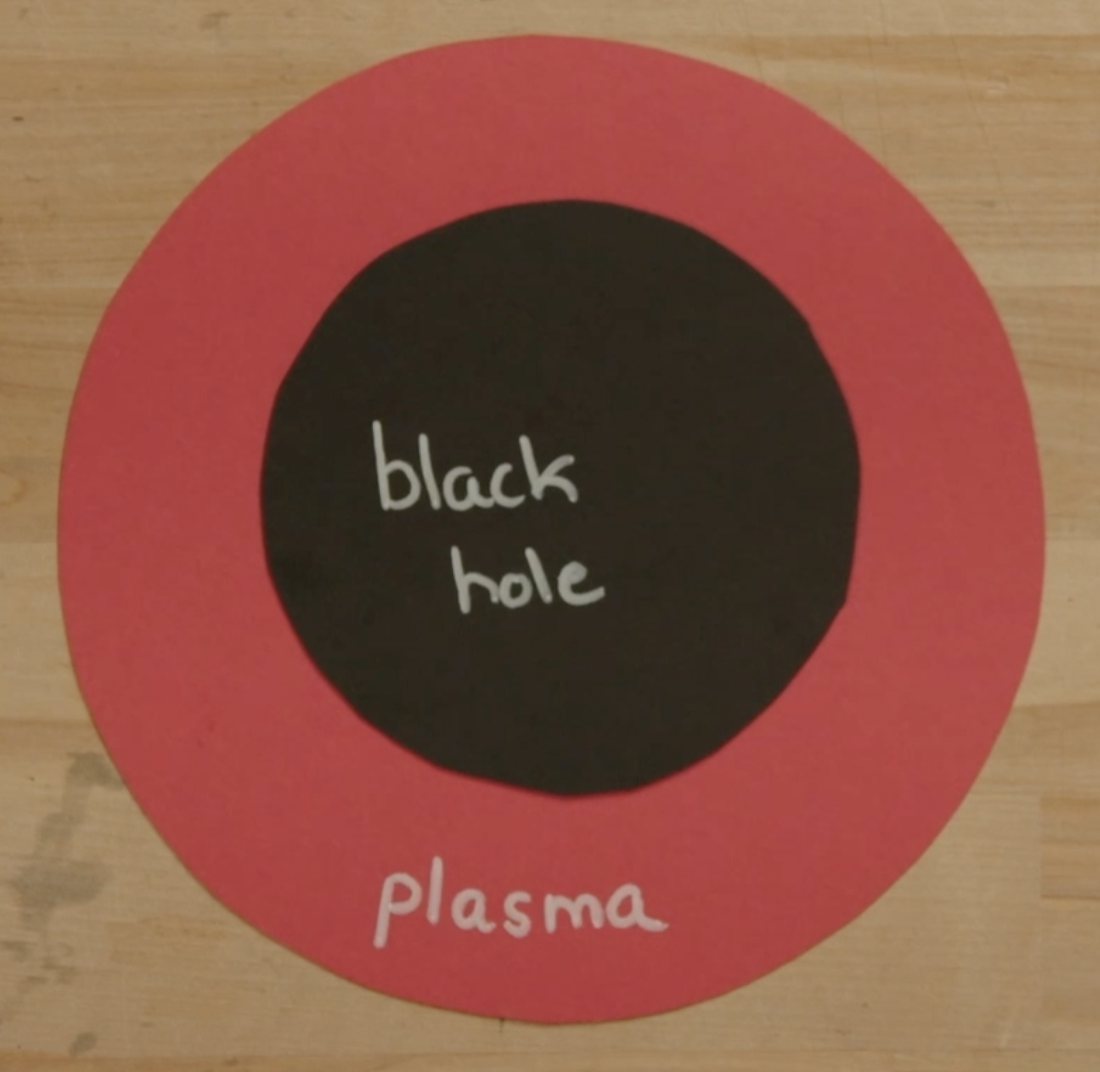
Graphical Representations
Build intuition through simplification!
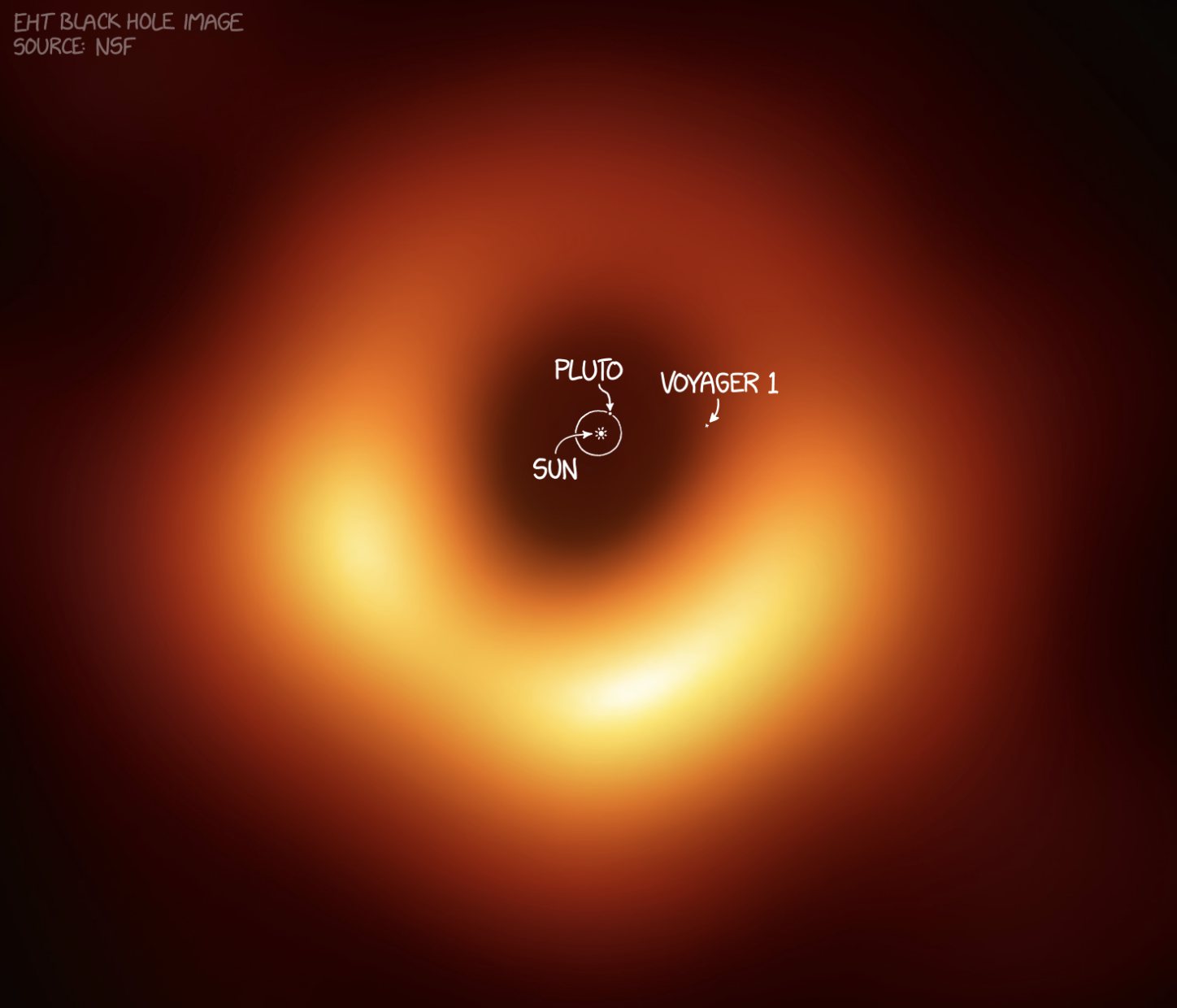
A simulated image of M87 at 230 GHz: axes, units, a colour bar. Accurate, but a lot to take in at once.
3.2
Technical Graphics / Figures
Establish conceptual understanding first, then technical understanding.
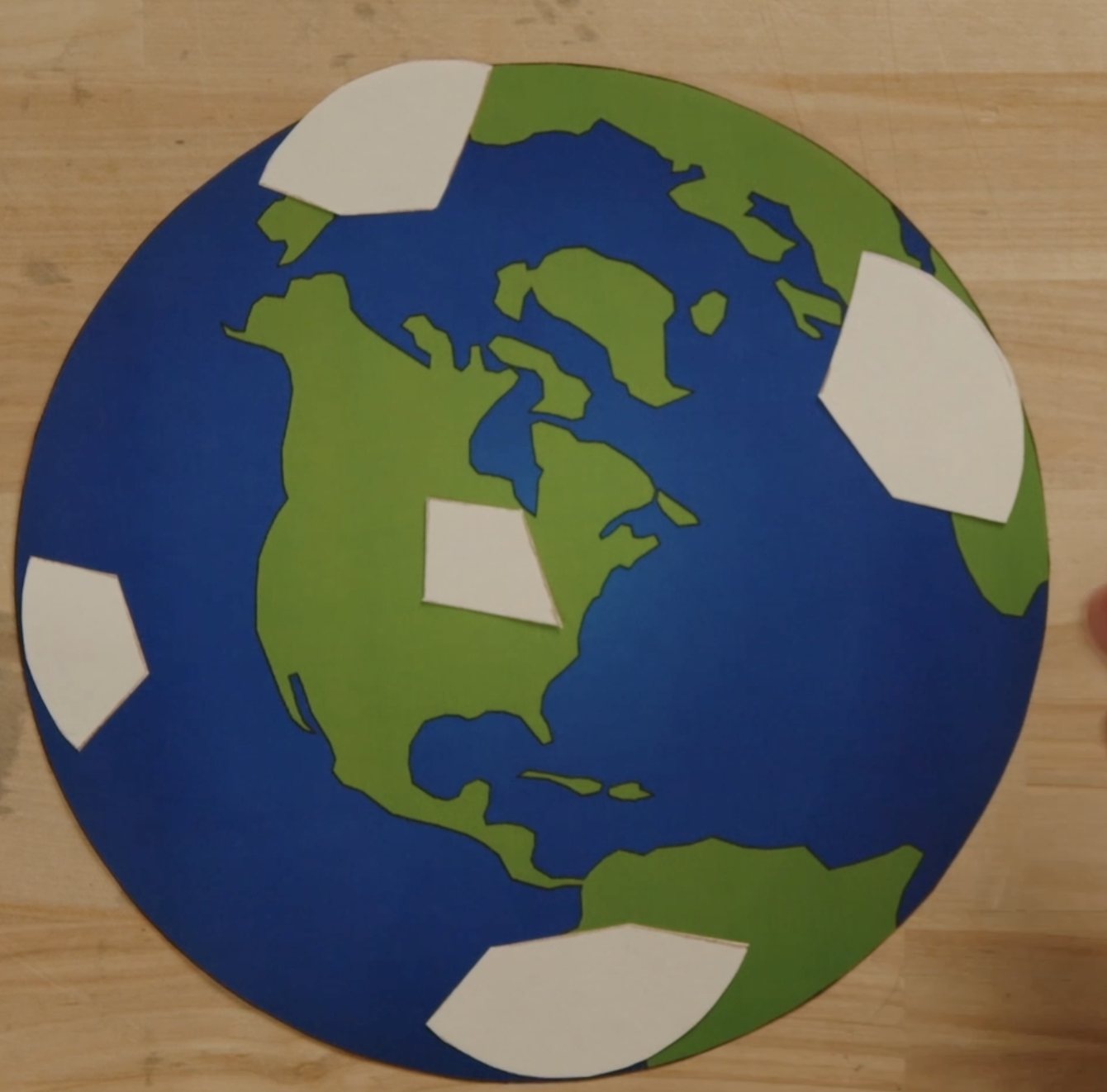
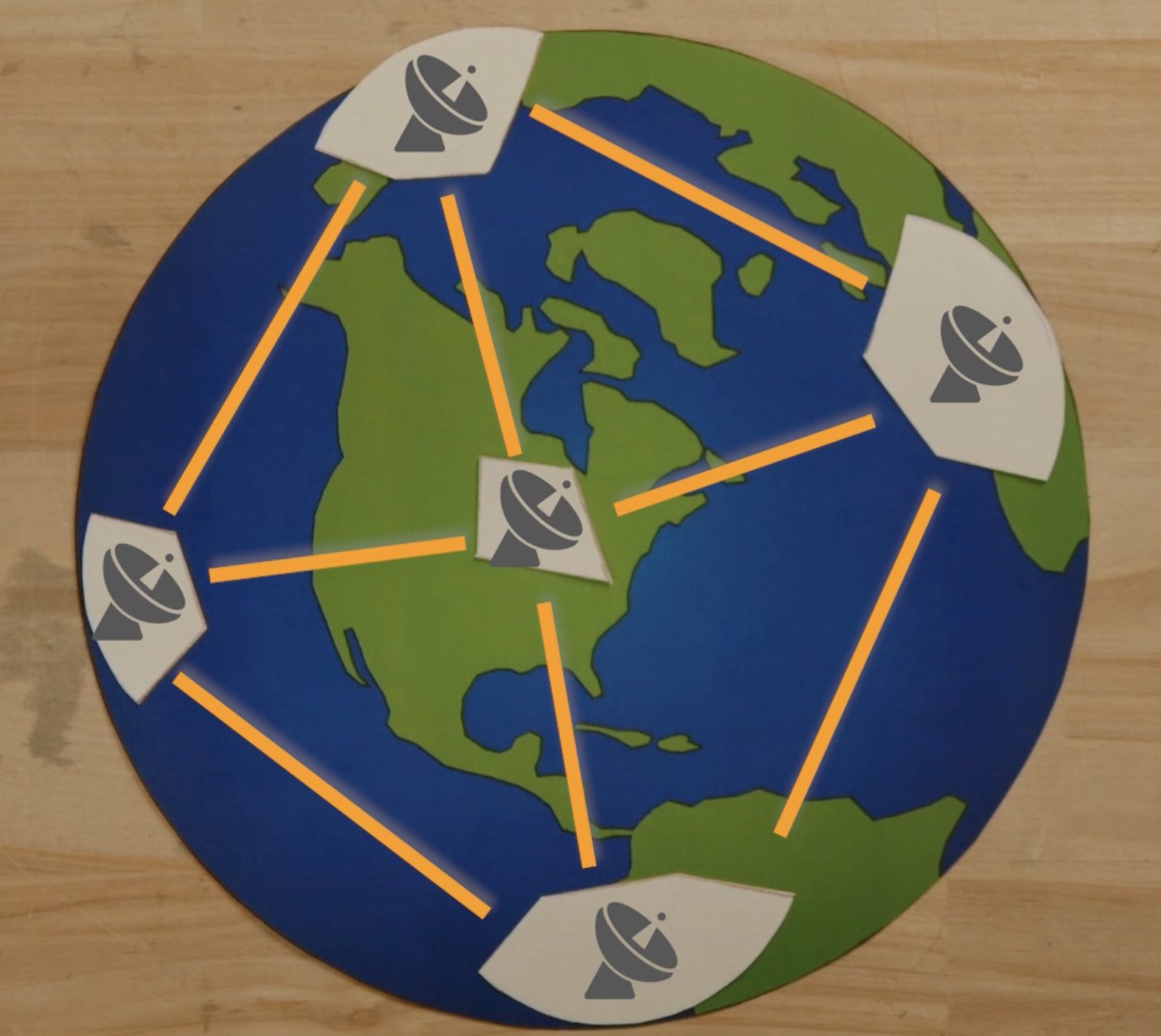
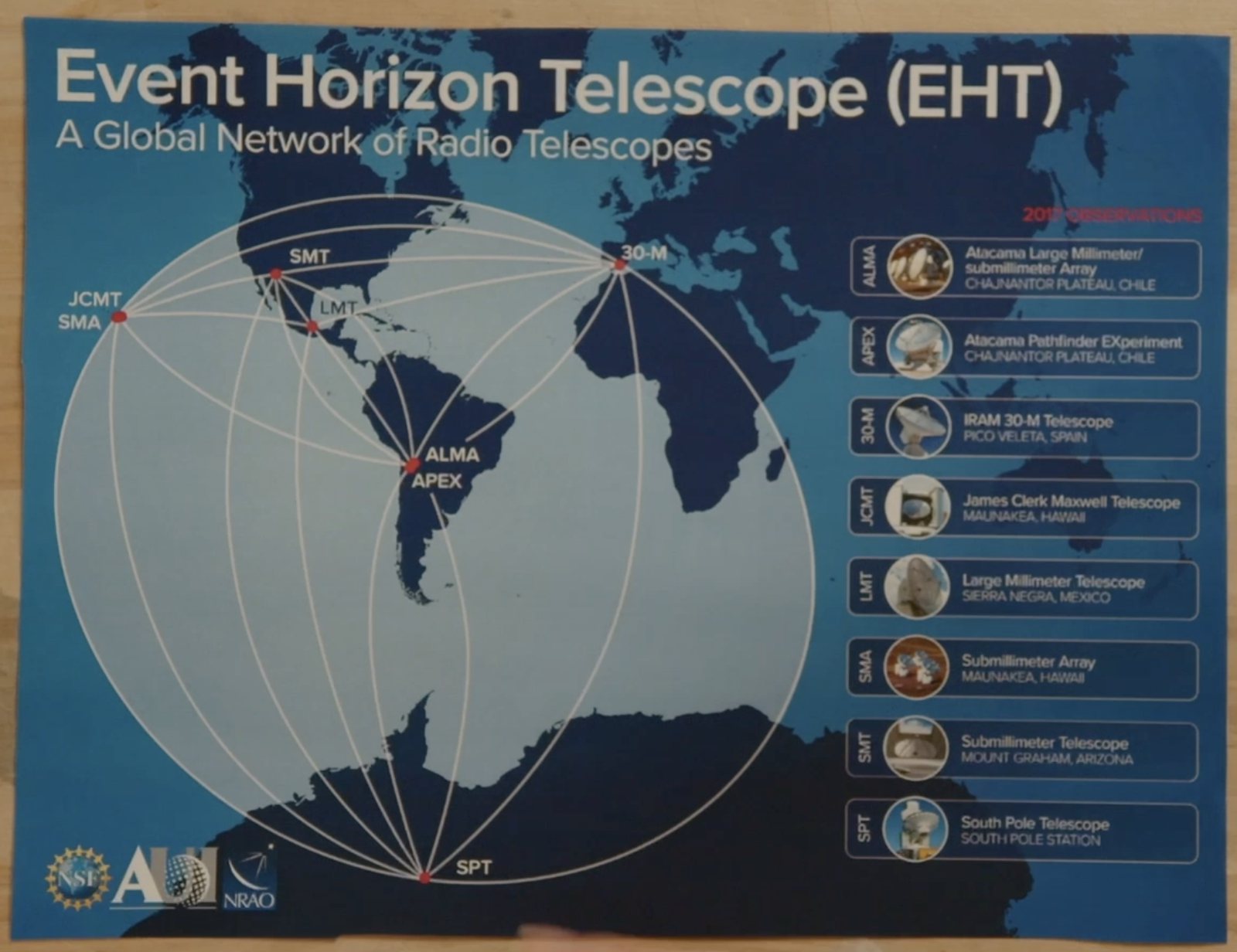
Visual parallels help!
3.3
Physical vs Digital
Made by hand
Physical
- Lean physical when possible — less editing time
- Maximal control
Made on screen
Digital
- High-resolution / existing graphics
- Animations and annotation can introduce movement and dynamics
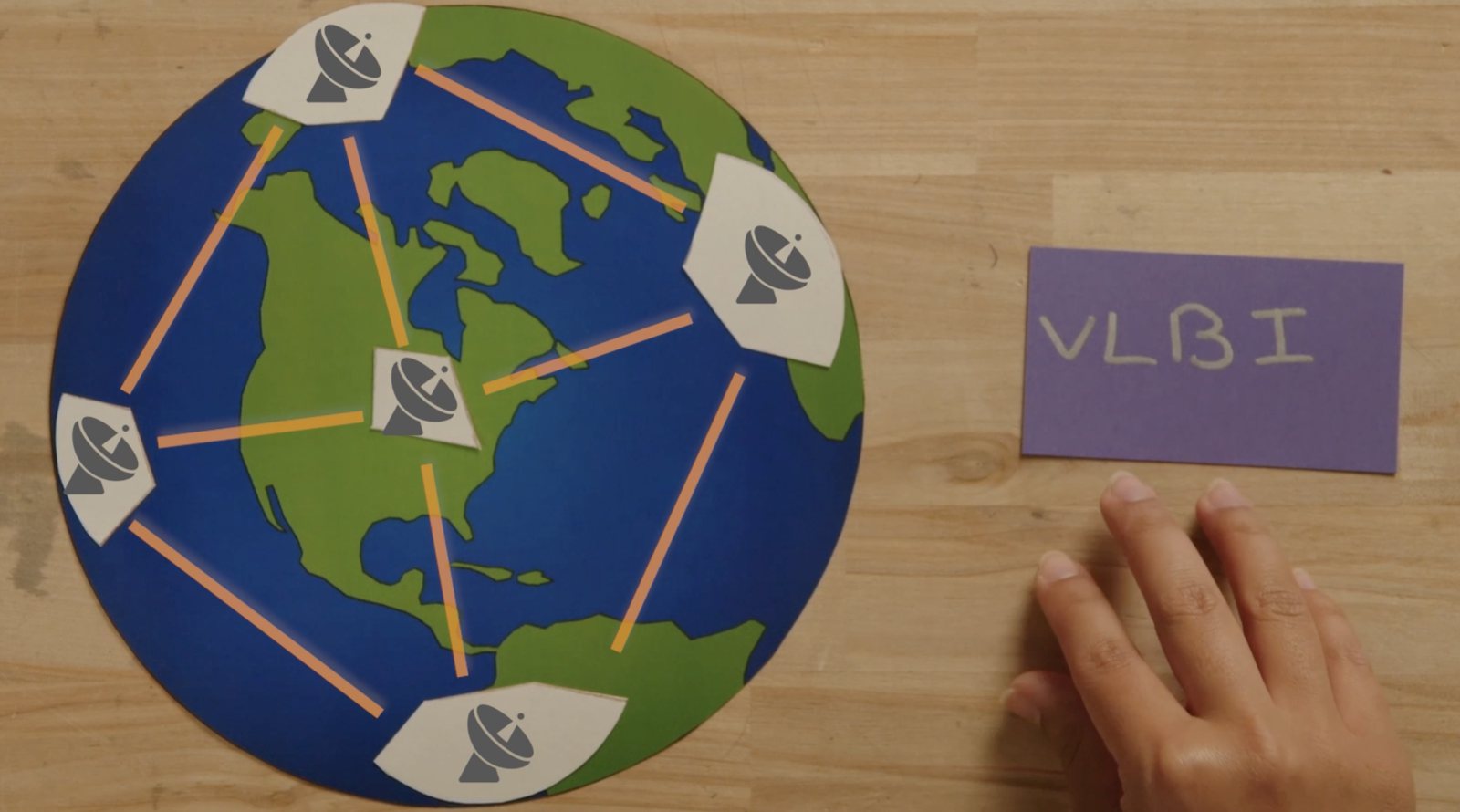
Best of both
Why not both!
Film your physical props, then layer digital elements, such as labels, highlights or annotations, on top in the edit. You keep the control of physical props and gain the movement of digital ones.
04 · What the viewer hears
Audio
Your narration needs the same simplification as your visuals.
4.1
Simplifying Your Narration
Translate jargon, and explain each idea concisely and clearly.
Translate jargon
Say it the way you’d explain it to a friend. Wherever an everyday word exists, use it.
Define key terms
When a technical term matters, define it in plain words the first time you say it, then use it the same way every time.
Use everyday metaphors
Compare complex ideas to things your audience already knows, like an orange on the Moon for the size of a black hole.
Keep it concise
One idea per sentence. Viewers can’t re-read narration, so if a detail doesn’t set up the next idea, cut it.
Don’t be afraid of pauses
A pause after a key idea lets your audience breathe and process it. A moment of silence over a good visual is fine.
Read it aloud
Read your script out loud. Anything you stumble over, or that you wouldn’t say to a friend, needs rewording.
4.2
From Jargon to Plain Language
The same three ideas, written two ways. Switch between them to see what changes.
Jargon-heavy
“VLBI correlates signals from radio telescopes across the globe to synthesize an Earth-sized aperture.”
Jargon-heavy
“The ring around M87* has an angular diameter of roughly 42 microarcseconds.”
Jargon-heavy
“Plasma in the accretion flow is heated by turbulent and viscous dissipation, emitting synchrotron radiation at millimetre wavelengths.”
05 · Put it together
Syncing Visuals & Audio
Your narration and visuals should complement each other, in timing and in complexity. Each idea you say needs something on screen, and the visual should keep pace as the explanation gets more detailed.
5.1
Match Timing and Complexity
Compare three versions of the same explanation, and watch the readout for the two most common mistakes.
Reading the dots
Every clip on the timeline below, whether narration or visual, has a row of three dots. The number of filled dots shows how complex that piece is.
- Simple
- Narration
- One everyday idea in plain words, with no jargon.
- Visual
- A single prop or shape, with nothing extra.
- Example
- “M87 has a black hole” over the black hole prop.
- Added detail
- Narration
- Builds on what’s already shown: a new term, a number or a connection.
- Visual
- More parts, labels or connections added to what’s on screen.
- Example
- “Telescopes link up” over the paper Earth with telescopes.
- Technical
- Narration
- The full scientific picture, with precise terms and quantities.
- Visual
- A real scientific figure, map or data.
- Example
- “The EHT” over the EHT network map.
The rule: a visual should have at least as many dots as the narration playing over it. When the narration has more dots than the visual, add detail to the visual, or simplify the sentence.
Every new idea gets a visual, and the visuals get more detailed as the narration does.
Viewer hears“M87 has a black hole at its centre.”
Viewer seesBlack hole prop
Complementary5.2
Tips for Syncing
Give every idea a visual
When you introduce a new idea, show something for it. Several ideas spoken over one unchanging visual leave viewers with nothing to hold on to.
Grow speech and visuals together
If the narration gets more detailed, add detail to the visual too: a label, an annotation, a more technical figure. If you can’t, simplify the sentence.
Bring visuals in on the word
Each visual should appear as the narration mentions it: not a sentence early, where it distracts, or a sentence late, where it confuses.
Point at what you’re describing
Use your hand, an arrow or a highlight to show which part of the visual you’re talking about right now.
5.3
Narrate Live, or Record a Voiceover?
Narrate live while you film
Talk through your script as you move the props, with both cameras rolling.
Good for
- Hands-on demonstrations, where actions match words
- Sync comes for free: voice and visuals are recorded together
- A personal feel, especially with your face on camera
- Minimal editing post-recording: cutting away missed takes, audio balancing, and changing camera views
Watch out for
- Doing two things is harder than it looks: practice before you film
- Trying to get the perfect take: small stumbles in speech or movement are okay!
Record a voiceover separately
Record the narration on its own, then film or gather visuals to fit it.
Good for
- Cleaner, more even audio
- Easy to re-record a single sentence
- Videos built mostly from digital images or animation
Watch out for
- You line every visual up with the voice in the edit
- Filmed actions have to be timed to fit the recording
- Editing time can be substantial
06 · Process
Workshop Flow
Start with the script. Everything else builds on it.
07 · Start here
Scripting Your Video
Plan what the viewer hears and what they see side by side, before you write a single full sentence.
- Step 1
Bullet the story
List your main points in order: A → B → C. Keep it to what your project needs, and note where a key term must be defined.
- Step 2
Pair every point with a visual
Fill in the right-hand column. Lean physical, reuse props where you can, and start conceptual before going technical.
- Step 3
Check the pacing
Aim for about 1 visual per ~3 sentences. A point with no visual, or three visuals at once, is a sign to rework it.
- Step 4
Write it out
Turn the bullets into a full script of 250–300 words. Read it aloud to check it sounds natural.
Video Planner Sheet
Drag the handle to try your ideas in a different order.
Drag to reorder, or press the up and down arrow keys.
| Order# | Script Bullet Points | Visuals accompanying | Remove |
|---|---|---|---|
Row 1 | |||
Row 2 | |||
Row 3 | |||
Row 4 | |||
Row 5 |
08 · Materials
Available Resources
Physical Materials
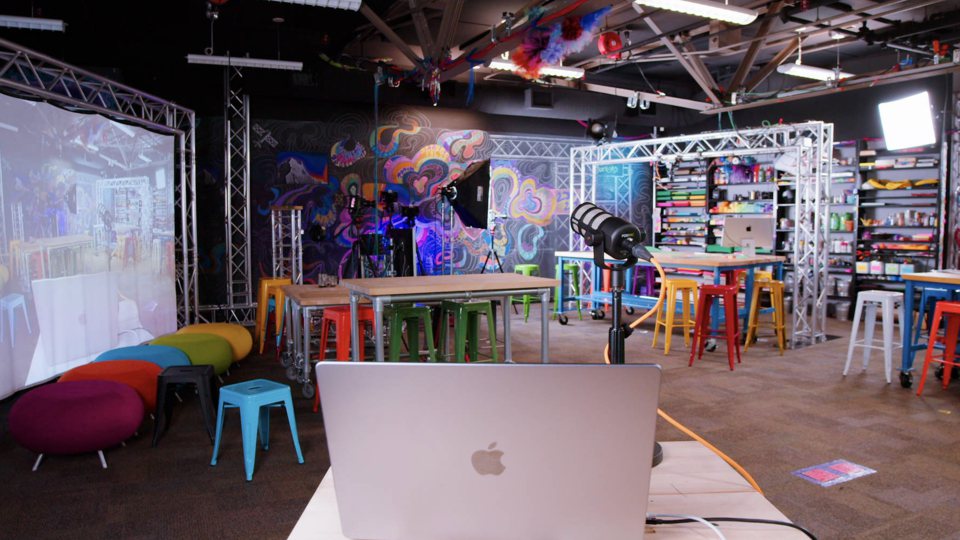
If it’s in an I SPY book… it’s probably in the Learning Lab!
Digital Materials
Beginner movie editing software
Quick to learn, with free versions available.
 Adobe Express
 iMovie
 CapCut
 Canva
Canva
Professional grade
More powerful, with a steeper learning curve.
 Premiere Pro
 Final Cut Pro
09 · Before you start
Tips
Prioritize multi-use and physical visualizations
- Less props= Less work
- Less editing= Less time
- 1 visual= per ~3 sentences
Want to make it more personal? Include footage of your face!
The Learning Lab will have 2 cameras recording at the same time!